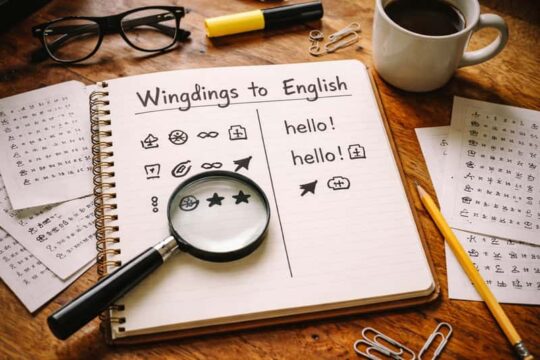
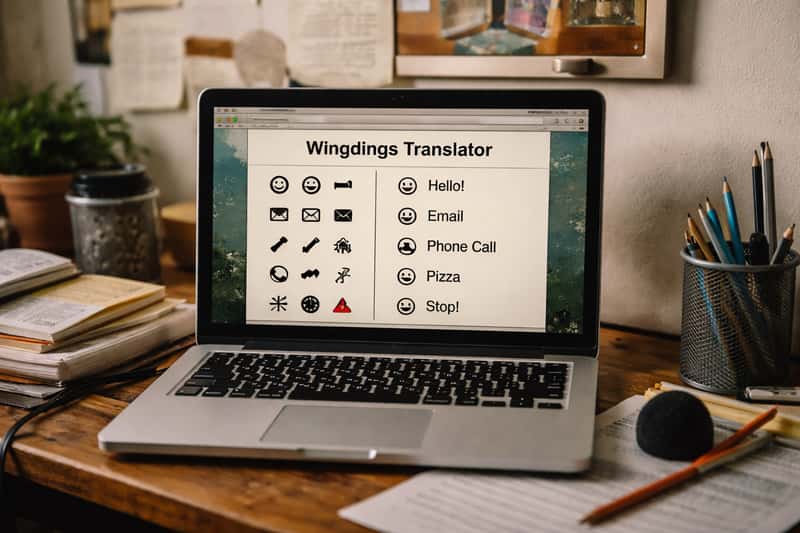
Type the word "HELLO" into a Wingdings translator and it spits back ♒♏●●₄, a string of symbols and shapes that looks like a secret only you can read. The original Wingdings font holds roughly 200 symbols, each one quietly standing in for a letter, number, or piece of punctuation. A wingdings translator is the tool that swaps every character you type for its matching symbol, then reverses the whole thing on demand, so you can encode plain text into pictograms or decode a wall of dingbats a friend just sent you back into readable English. No font-history lecture required, just paste, convert, copy. If you came here to turn a message into symbols or crack one open, a wingdings translator is exactly the one-click tool that does both directions in seconds.
What a Wingdings Translator Actually Does
A wingdings translator does one job and does it well: it maps each letter you type to a Wingdings symbol, then flips the process when you need to read symbols someone sent you. Type "HI" and you get two pictograms. Paste those same two pictograms into decode mode and you get "HI" back. That’s the whole magic trick.
The original Wingdings font, designed by Charles Bigelow and Kris Holmes for Microsoft in the early 1990s, holds roughly 200 symbols. Each one replaces a standard ASCII character, so the swap is a clean one-to-one substitution. The translator just reads that fixed table in either direction. Nothing is encrypted, nothing is hidden from anyone who has the same tool. You landed here to encode a caption or decode a friend’s cryptic note, and that’s precisely the gap this tool fills. A solid free option is the LingoJam Wingdings Translator, which handles both directions in the same window.
How to Convert Text to Wingdings (and Back) in Seconds
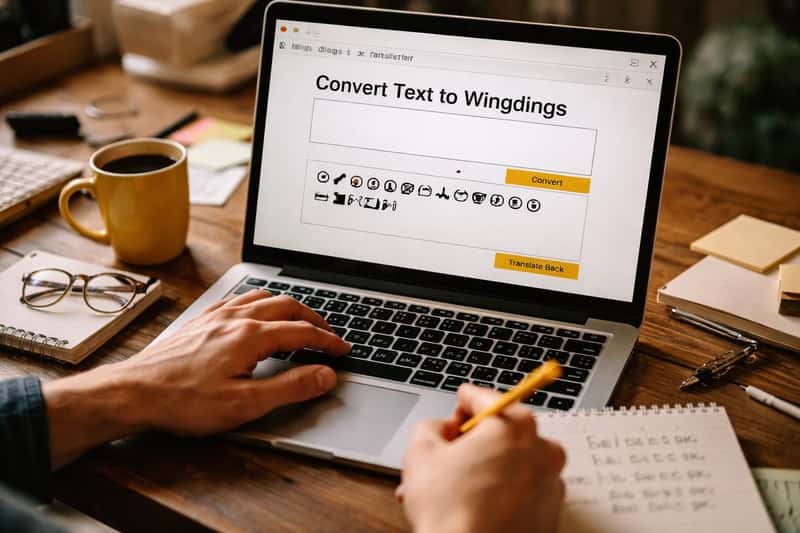
The workflow is short enough to run on a phone with one thumb. Most online translators put two boxes on the screen: input and output.
- Paste or type your text into the input box.
- Pick your variant (Wingdings, Wingdings 2, Wingdings 3, or Webdings).
- Copy the symbol output, usually with a one-tap copy button.
To go the other way, drop the symbols into the same tool, switch to decode mode, and read the result. That’s it. The reverse path matters because it’s the only fast way to read symbols you didn’t create yourself.
Encode: Plain Text Into Symbols
Encoding is the easy direction. Type "PARTY," choose your Wingdings set, and watch each letter flip into a pictogram. Hit the copy button most online tools include and you can paste the result straight into an Instagram caption or a group chat. Short words work best for readability, since long symbol strings get dense fast.
Decode: Symbols Back Into English
Decoding is where the translator earns its keep. A friend sends you a wall of dingbats, you paste it in, hit decode, and the message resolves into plain text. This is the part Microsoft Word can’t do on its own. Word will happily turn your text into symbols, but it has no decode button, so reading symbols always sends you back to a translator.
Wingdings in Microsoft Word and Google Docs
The manual route is built into Word and it’s almost too simple. Type your text normally, highlight it, then change the font to Wingdings from the font menu. Your words become symbols instantly.
Here’s the catch that trips people up. Changing the font is a one-way street. Once your text displays as Wingdings, Word treats it as those letters wearing a symbol costume, but there’s no native "translate back to English" command. To read it, you copy the symbols into an online translator. Google Docs handles Wingdings similarly when the font is available, though font menus vary, and you may need to add it or rely on a translator instead. The honest takeaway: Word and Docs encode, but a translator decodes.
Your A-to-Z Wingdings Reference Chart
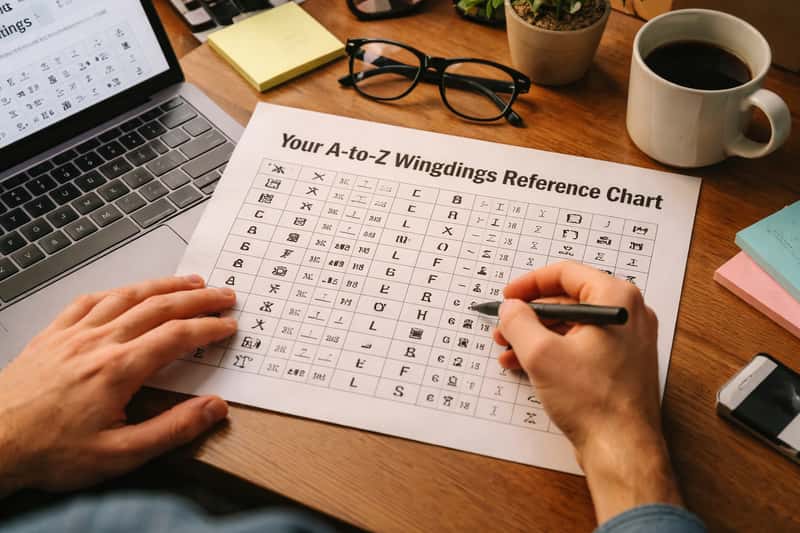
This is the section people bookmark. When no tool is open, a quick reference lets you translate a few letters by hand or spot patterns in a symbol string someone sent. The exact glyphs render slightly differently by device and font version, so treat this as a working guide, not gospel. If you want the deeper backstory on how symbol fonts evolved, this history of dingbats sits Wingdings inside a long design tradition.
Letters A Through M
| Letter | Symbol | Letter | Symbol |
|---|---|---|---|
| A | ✌ | H | ✋ |
| B | 👌 | I | ☝ |
| C | 👍 | J | ☺ |
| D | 👎 | K | 😐 |
| E | ☜ | L | ☹ |
| F | ☞ | M | 🕈 |
| G | ☝ |
Letters N Through Z, Plus Numbers
| Letter | Symbol | Letter | Symbol |
|---|---|---|---|
| N | ✆ | U | 🙰 |
| O | ✈ | V | ♋ |
| P | ✉ | W | ♌ |
| Q | 🕮 | X | ♍ |
| R | 🕿 | Y | ♎ |
| S | ✏ | Z | ♏ |
| T | ✑ | 1-3 | ❶ ❷ ❸ |
Glyphs shift a bit between font versions, so always confirm a tricky letter in a live translator before you trust a hand-built string. Once you know the pattern, a full sentence comes through cleaner than you’d expect.
Wingdings vs Wingdings 2, 3, and Webdings
There are four main Microsoft dingbat sets, and most translators support all of them. The confusion is fair, because the same input produces completely different output across each one. Type "A" in Wingdings 1 and you get a pointing hand; type "A" in Webdings and you get a spider.
Wingdings 1 leans on hands, faces, and office icons. Wingdings 2 and 3 add more arrows, shapes, and directional glyphs. Webdings skews toward web-era pictures like globes, cameras, and play buttons. None is "better," they’re just different alphabets of symbols. The variant you choose is purely about the look you’re after.
Which Variant to Pick for Your Message
Match the set to the vibe. Want playful faces and pointing hands? Wingdings 1. Need arrows for a scavenger-hunt clue? Wingdings 3. Going for a modern, icon-heavy caption? Webdings. Because the same letters render differently in each, test your message in two or three sets before you commit. It takes ten seconds and saves you from posting a string that looks wrong for the mood you wanted.
Wingdings Ideas Worth Actually Trying
This is the part you actually came for. Wingdings shines when you treat it as decoration and play, not as a serious cipher. Drop a symbol string into a party invite so guests "decode" the location. Hide a scavenger-hunt clue in dingbats and hand out the translator link as the key. Spell a one-word roast in symbols and make the group chat work for the punchline. The point isn’t secrecy, it’s the small thrill of a message that makes someone do a double-take.
Secret Notes and Group-Chat Codes
A group chat is the perfect home for a running Wingdings gag. Pick one phrase your squad always uses, encode it, and let it become your symbol signature that newcomers have to decode to get the joke. It fits the same energy that goes into naming your crew in the first place, the kind you’ll find in our roundup of group names for your squad of five. If you’d rather stylize your actual username than swap full sentences into symbols, the PUBG name generator gives you fancy handles without the decoding step.
Captions, Bios, and Decorative Flourishes
Wingdings symbols make eye-catching accents in Instagram captions, TikTok descriptions, and X bios. A few well-placed glyphs break up text and read as intentional design. One warning: symbols render as boxes or question marks on some platforms and devices, so always preview before you post. What looks crisp on your phone can collapse into empty squares on someone else’s.
The Wingdings "Secret Code" Myth, Debunked
Here’s the honest take most translator pages skip. Wingdings is not a secret code, and it never was. It’s a fixed, public font swap with a one-to-one mapping anyone can reverse in a single click. There’s no key, no password, no encryption. If you can encode it, so can the person you’re trying to keep it from.
The old Microsoft conspiracy lore, the idea that certain words spell out hidden messages in Wingdings, is fun trivia and nothing more. It’s pattern-matching, not a buried message. Online communities already run bots that auto-translate Wingdings posts back into English, which tells you everything about how "secret" it really is. Treat Wingdings as a visual puzzle and an aesthetic, never as a privacy tool.
Where Wingdings Breaks and What to Use Instead
Wingdings has real limits worth knowing before you lean on it. Some apps and browsers won’t render the symbols at all, leaving readers with rows of empty boxes. Screen readers can’t parse dingbats into meaningful words, so anything important becomes invisible to people using assistive tech. And it’s useless for anything genuinely private, since reversing it takes seconds.
When you want stylized text that travels well, Unicode fancy fonts or plain emoji are the better bet. They render more consistently across platforms and stay readable. If you like keeping a couple of quick browser toys bookmarked, our random state generator is another one-click utility in the same playful spirit. And for more naming and tool roundups, our group names hub keeps the whole collection in one scannable place.
The DigiChick Take
Wingdings is a toy, not a vault, and that’s exactly why it’s fun. Use it for the group-chat inside joke, the party invite puzzle, the caption that makes someone tilt their head. Keep a translator bookmarked, skip it for anything that actually needs to stay private, and you’ll get every bit of the charm with none of the false security.
FAQs about wingdings translator
How does a wingdings translator work?
It reads a fixed lookup table that pairs each standard character with one Wingdings symbol. Encode mode swaps letters for symbols, decode mode swaps them back, both instantly.
Can I translate Wingdings back to English?
Yes. Paste the symbols into a translator, switch to decode mode, and it returns the original text. Word can’t do this, so an online tool is your only fast route.
How do I convert normal text to Wingdings online?
Type or paste your text into the input box, pick your Wingdings variant, then tap copy on the symbol output. The whole thing takes a few seconds on desktop or mobile.
How do I type in Wingdings in Microsoft Word?
Type your text normally, highlight it, and change the font to Wingdings. Remember the catch: this is one-way, so you’ll need a translator to read it back later.
What’s the difference between Wingdings, Wingdings 2, 3, and Webdings?
They’re four separate symbol sets, so the same input produces different glyphs in each. Wingdings 1 favors hands and faces, Webdings leans toward web icons like globes and cameras.
Why do Wingdings symbols show up as boxes on my phone?
The app or platform you’re viewing them in doesn’t render that font or symbol. Always preview a symbol string before posting, since rendering varies by device and browser.
Is Wingdings a real secret code or encryption?
No. It’s a public font swap with a fixed mapping anyone can reverse, including moderation bots. Treat it as a visual puzzle or aesthetic, never as a privacy tool.
Can I use Wingdings in Instagram or TikTok bios?
You can paste symbols into bios and captions for decorative flair, but test first. Some platforms display them as empty boxes instead of the symbols you intended.
How many symbols are in the Wingdings font?
The original Wingdings holds roughly 200 symbols, each replacing a standard letter, number, or punctuation mark with a pictogram like an arrow, hand, or face.
Are there mobile apps to type in Wingdings directly?
Yes, third-party translator apps and even dedicated Wingdings keyboards exist for iOS and Android, letting you send symbol messages in chats without copy-pasting from a website.